 Deutsch (Deutschland)
  English (United Kingdom)
 Setup and Basic Configuration of Roonmatrix and Coverplayer
In addition to Roon, Coverplayer also supports Spotify and Apple Music.
There are a few things to keep in mind.
When you first start up the Roonmatrix, only one news ticker (NBC News) is preconfigured so that something is displayed right away.
This is quite handy to determining whether the device works in principle. To do this, the Roonmatrix retrieves the RSS feed from the internet.
Internet access is therefore required. However, this does not automatically mean that the device is accessible from the internet. For security reasons, this is not the case.
However, various information sources from the internet are used, such as RSS feeds or an optional weather service.
The device retrieves updates for language translations at regular intervals from the Roonmatrix website www.roonmatrix.com.
Are you missing a translation? I'd be happy to make your own translation available on the server. These are simply structured files in JSON format for the app,
as well as in INI format for the Roonmatrix and Coverplayer hardware.
Here is a example of a json file (translation for the app): translations_en.json
And here is a example of a ini file (translation for RoonMatrix and CoverPlayer device): translations_es.ini
Further configuration depends, among other things, on individual requirements, capabilities, and preferences.
For this reason, most features are initially disabled.
However, configuration is very easy to do using the Roonmatrix app. It is available on all major platforms (macOS, Windows, Linux, iOS, Android),
and it also supports the Coverplayer, offering device-specific configuration and control options.
Now I’ll move on to what is probably the most important feature of the devices: displaying information from the most popular music and streaming apps, as well as controlling playback.
Roon:
To use Roon, you’ll need the Roon Client app and, of course, a Roon Server in your local network. The server’s IP address and port are detected automatically, so no further configuration is required.
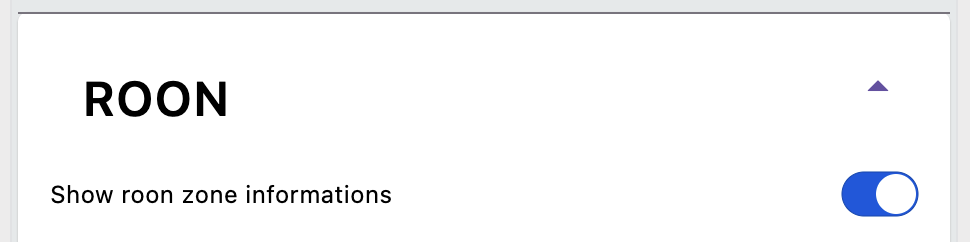
All you need to do is enable access to Roon in the app config.
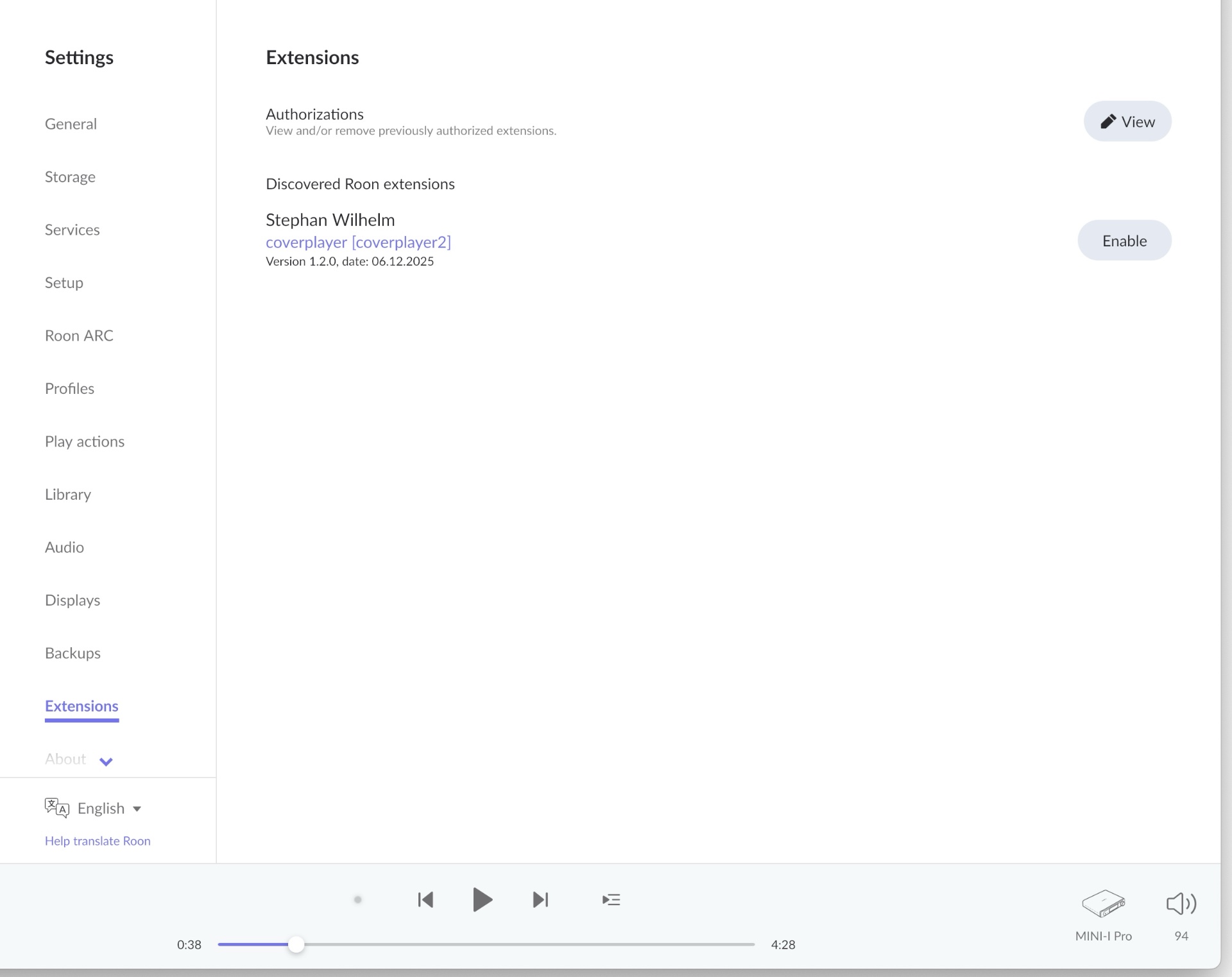
At the first start of the device, you must start the Roon Client App, and open the Settings. Open the Extensions page, and enable the roonmatrix extension — that’s it.
The output sources — known as zones — are detected automatically.
Spotify Connect:
To use Spotify Connect, you need to have the Spotify client app installed on a desktop computer of your choice (macOS, Windows, or Ubuntu Linux) or a smartphone of your choice (iOS or Android),
as well as a Spotify account. A free account is not supported, as it has too many restrictions (no Spotify Connect support, no API access).
You’ll also need a free Web API account. You can set this up via the Spotify Dashboard: https://developer.spotify.com/documentation/web-api
As mentioned, the developer account is free; you only need to set it up once.
The form looks something like this:
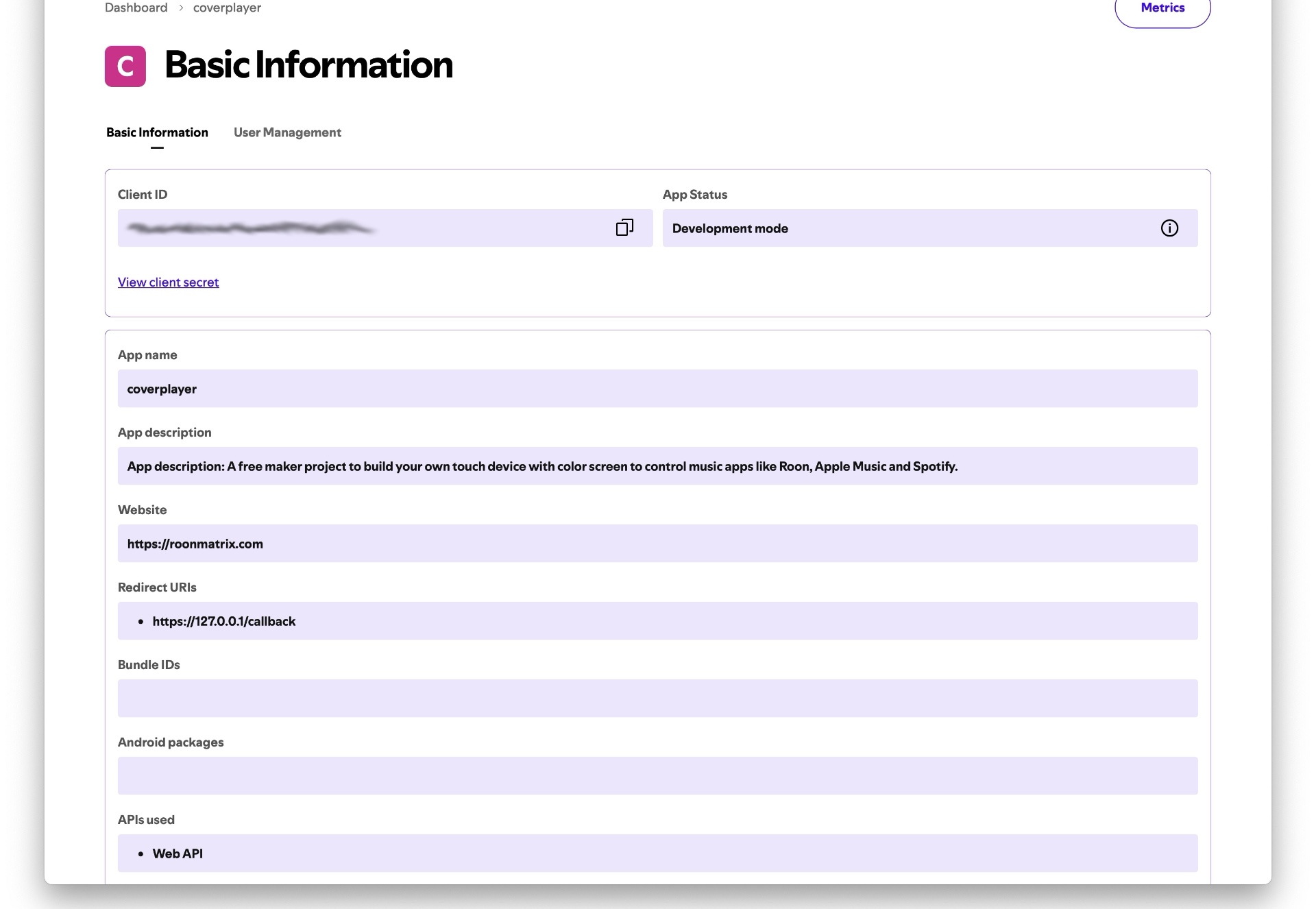
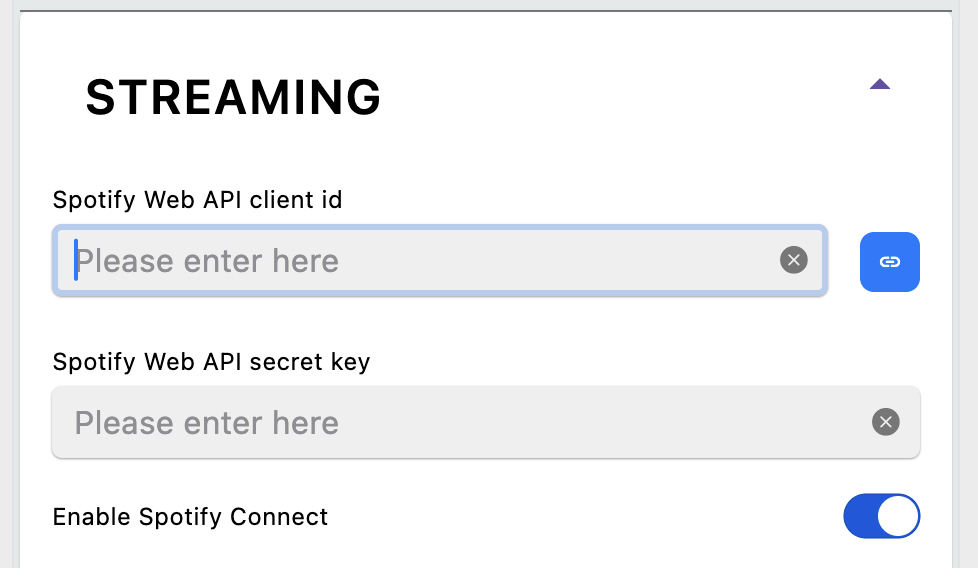
You’ll need to enter the Spotify Web API Client ID and API Secret Key from your account into the Roonmatrix app configuration.
Now you might be wondering: Why is this necessary? Isn’t there an easier way?
Well, Roonmatrix and Coverplayer are open-source, free projects. The devices’ software is open-source and can be read and analyzed by anyone.
Nothing is encrypted or otherwise protected. Furthermore, providers like Spotify or Apple do not permit their APIs to be made freely accessible to other users.
The access credentials are individual, so unfortunately, as a user, you are forced to register with the providers yourself in order to use their APIs.
You might be wondering, what is an API? Why do I need it?
In principle, an API is a software interface that you can use to query or modify your own or third-party content via various function calls.
Spotify and Apple offer such APIs to allow access to their streaming music libraries. Among other things, you can use them to initiate search queries.
Without API access, therefore, searching their streaming music libraries is not possible.
Roon also uses an API, but it doesn’t require any special API credentials.
This is certainly due, in part, to the fact that Roon simply enriches your own music files with metadata and makes them available through a service located on your own network, not on the internet.
It’s “your” personal music, stored on “your” server.
Back to Spotify: Once the Spotify API account has been set up in the Roonmatrix app configuration, you can use the Spotify service on the device.
You can then use the Coverplayer’s Spotify search function to select and play tracks, entire albums, or playlists.
The cover art and track information for the selected zone (output channel) will then be displayed on the Coverplayer touch display.
The Roonmatrix LED matrix display will then show information about the currently playing track.
The Roonmatrix combines all sources into a single output stream, so that information about all currently active zones is displayed sequentially.
If desired, you can enhance this with additional sources such as weather data or RSS feeds.
If you want to use Spotify Connect, you need to enable this feature in the Roonmatrix app config and log in to Spotify Connect via the web using your device.
The Roonmatrix app supports this: If you’ve set up Spotify Connect in the config but haven’t logged in yet, the app will detect this and will display a additional login button in the device list.
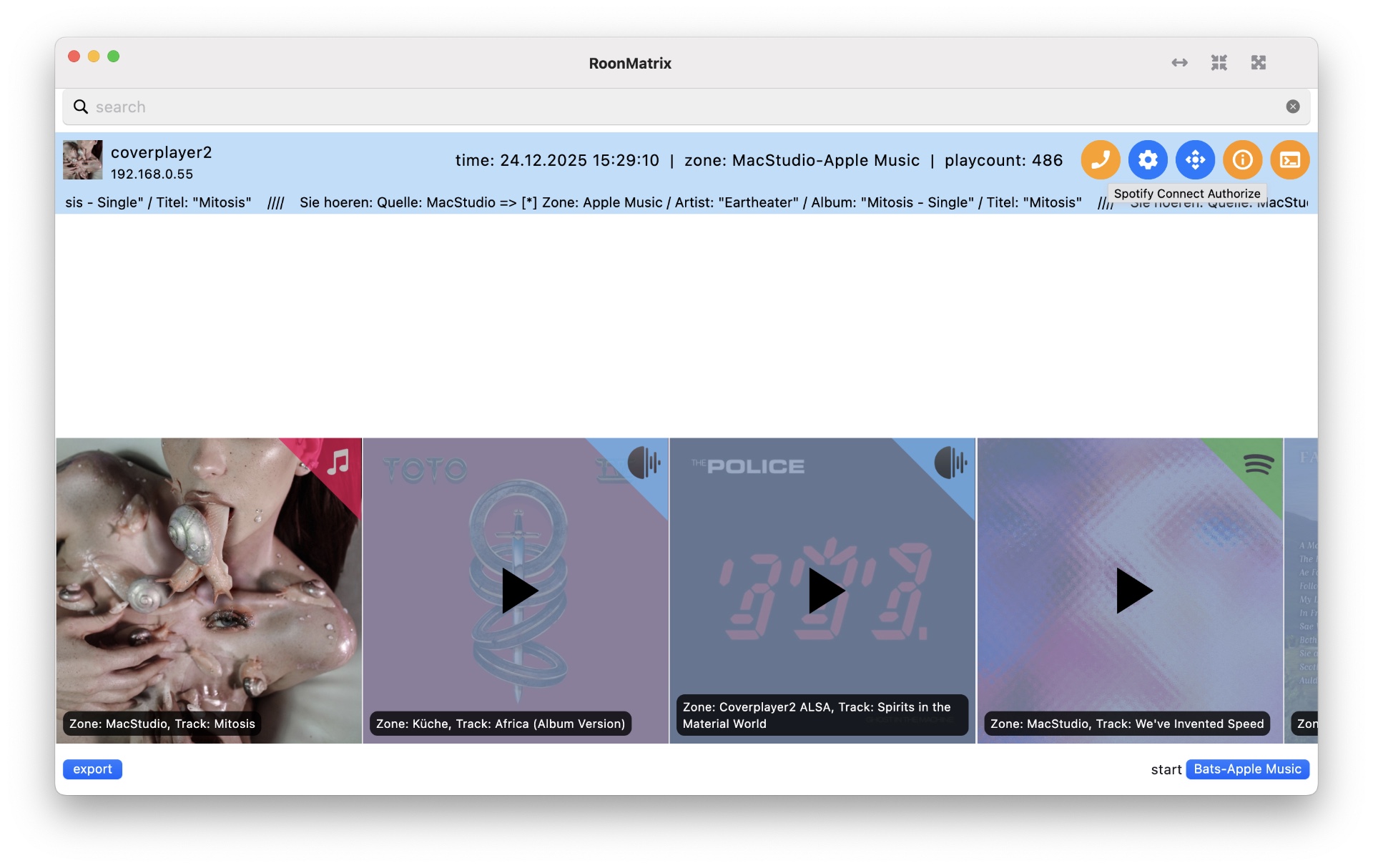 Once you click this button, you will be redirected to the web login page within the app. Here, you must enter your login credentials.
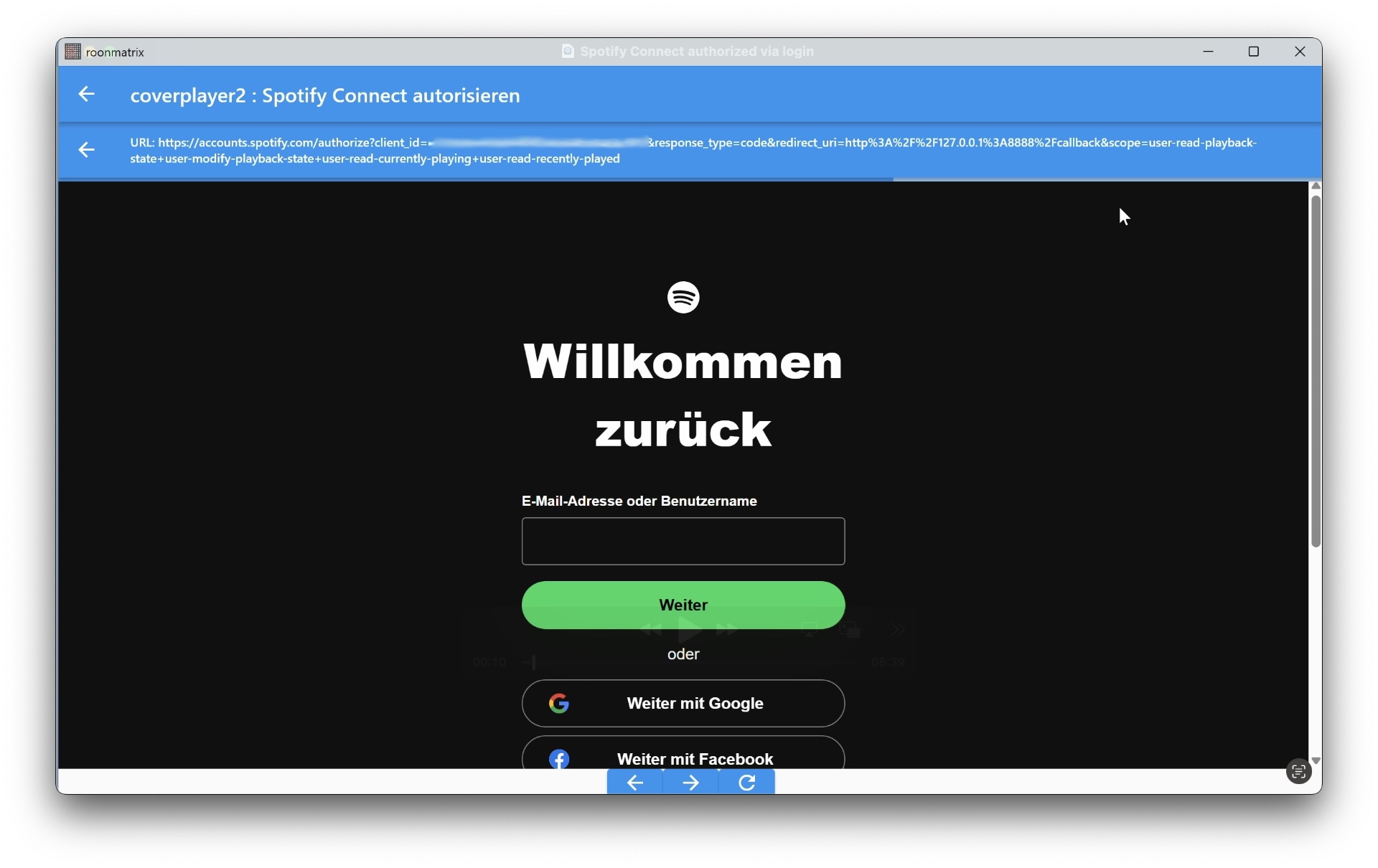
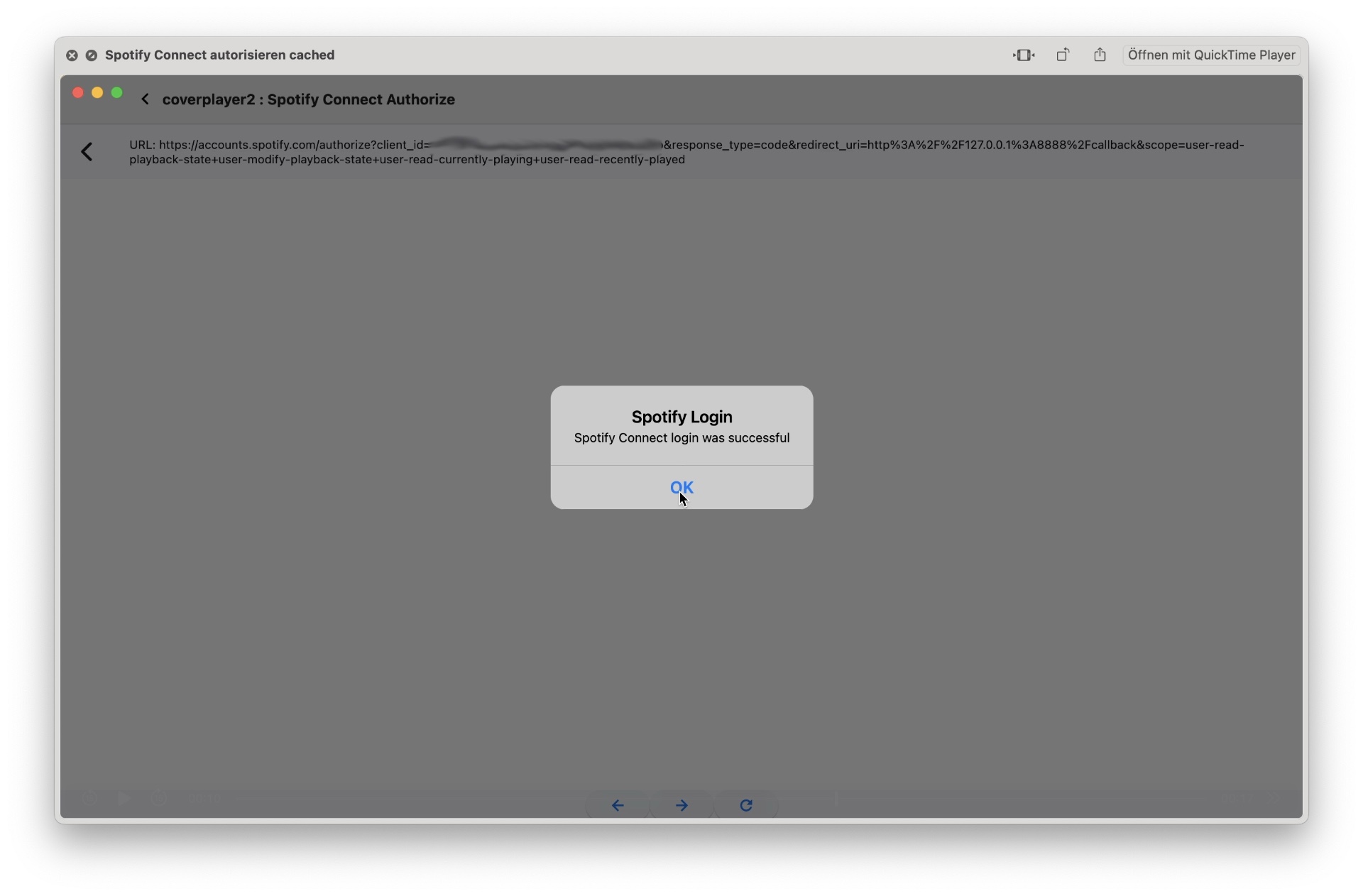
Here is a video of a Spotify Login via Roonmatrix App:
After the first Spotify Login the next (cached) Login works without password. I don't know how it works, but it works:
Upon successful authentication, the app transmits the login token to the device, where it is stored.
After that, you no longer need to log in every time you start the device; this happens automatically using the stored token.
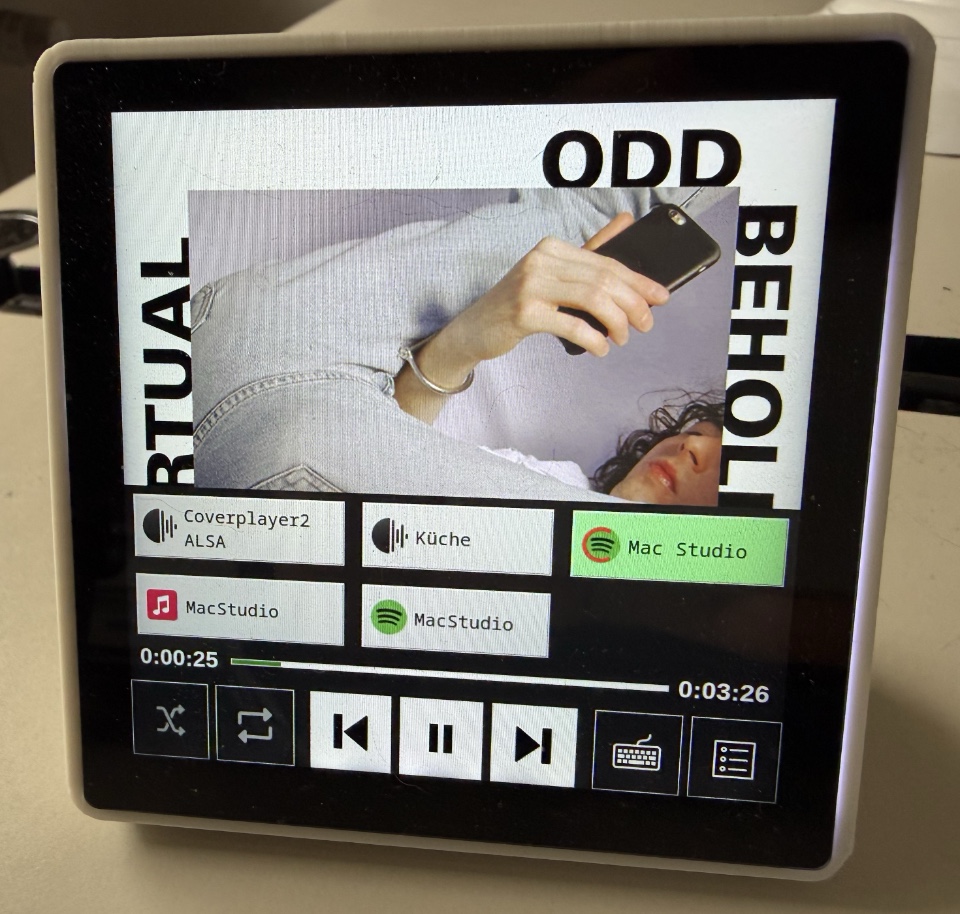
If everything has worked so far, Spotify Connect will also appear in the Roonmatrix output stream, and a Spotify Connect zone will now be displayed as a button on the cover player.
You can access the Coverplayer menu by touching the touchscreen.
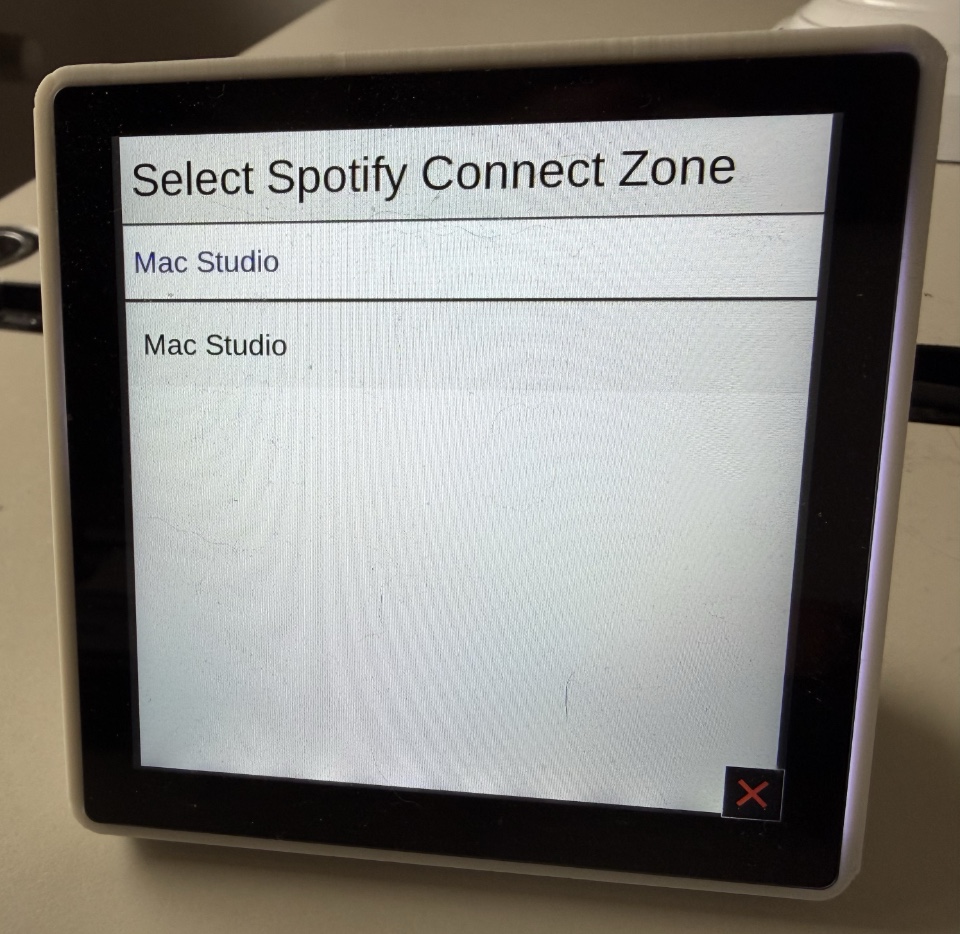
By clicking the Spotify Connect button in the Coverplayer menu, you can select the Spotify Connect zone.
|
|
The Zone button will then automatically change its label to match the output channel’s (zone) name.
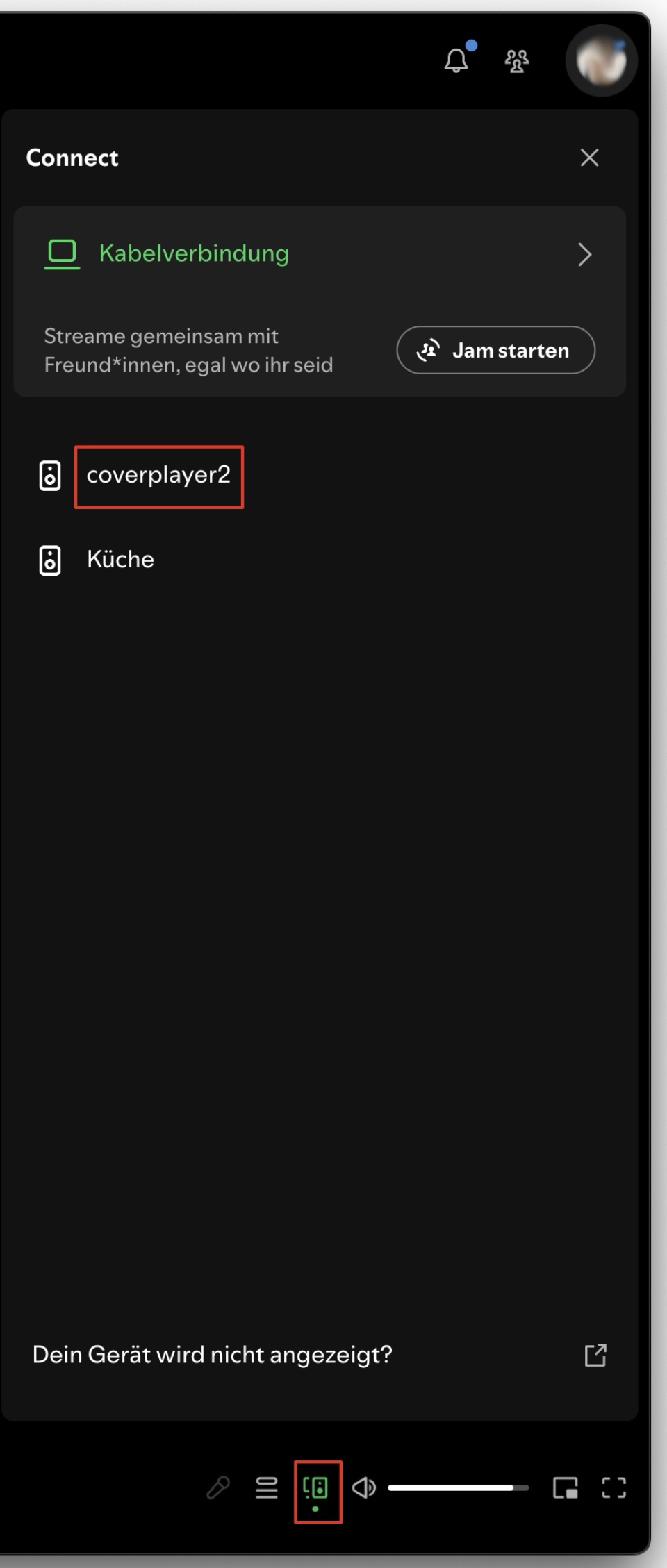
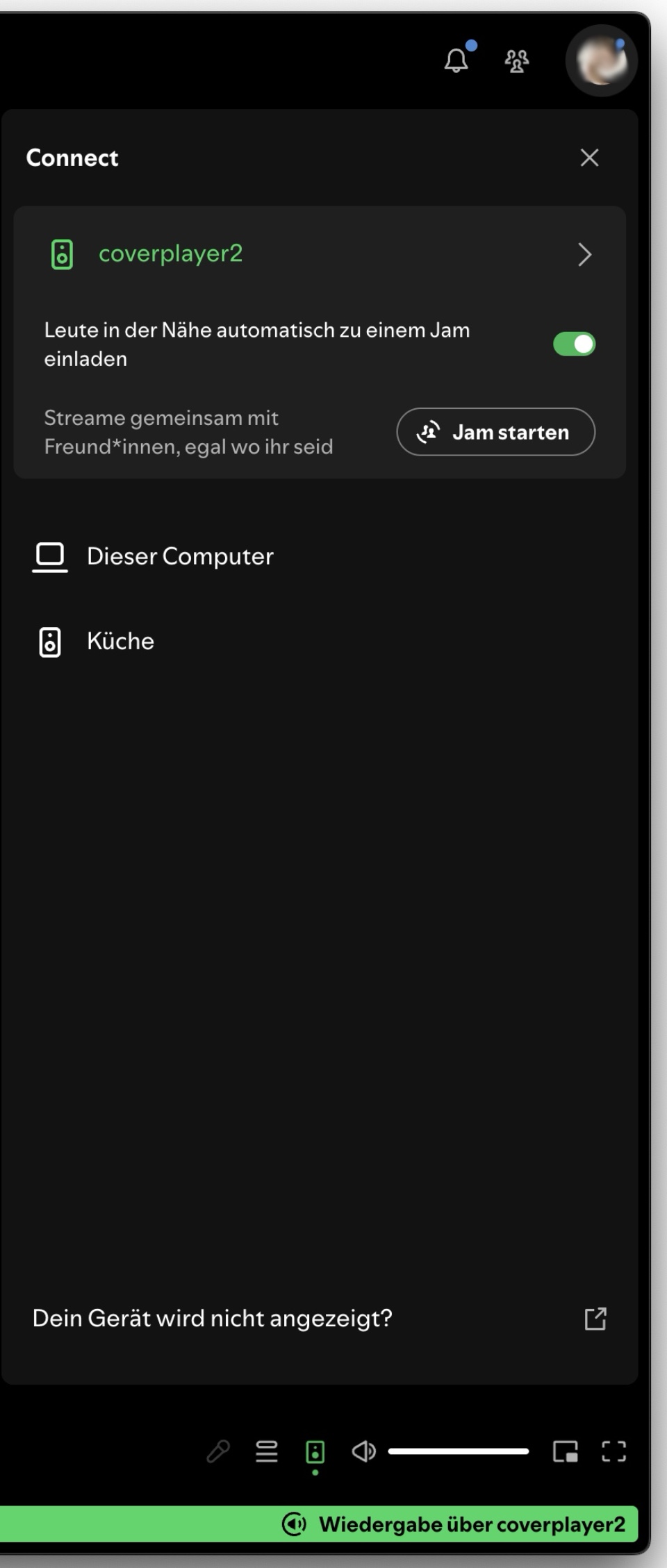
Typical output channels include, for example, the computer running the Spotify app, as well as audio streamers that support Spotify Connect. Bluetooth headphones or speakers can also be controlled through these.
The Coverplayer itself also features a built-in Spotify Connect server.
You can connect a USB Bluetooth audio dongle — such as one from Avantree — to the Coverplayer or Roonmatrix (optional).
This additional output channel can then be used directly with Spotify Connect to stream music from Spotify to Bluetooth headphones.
 |
 |
But there are even more options: AirPlay 2 is also supported, so you can also play music using the Apple Music app via the connected Bluetooth audio dongle.
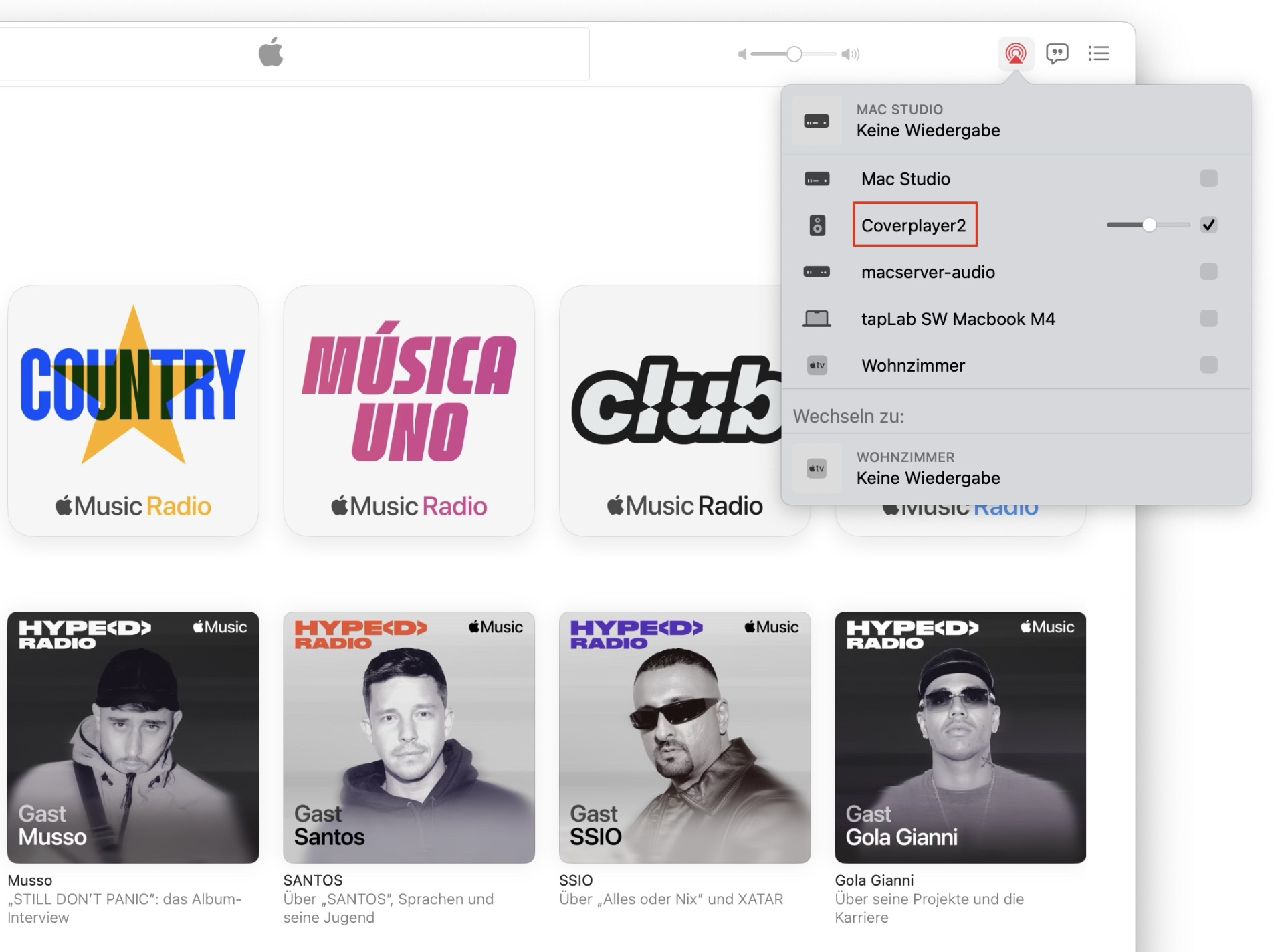
Roon also recognizes the Bluetooth dongle as a new output channel.
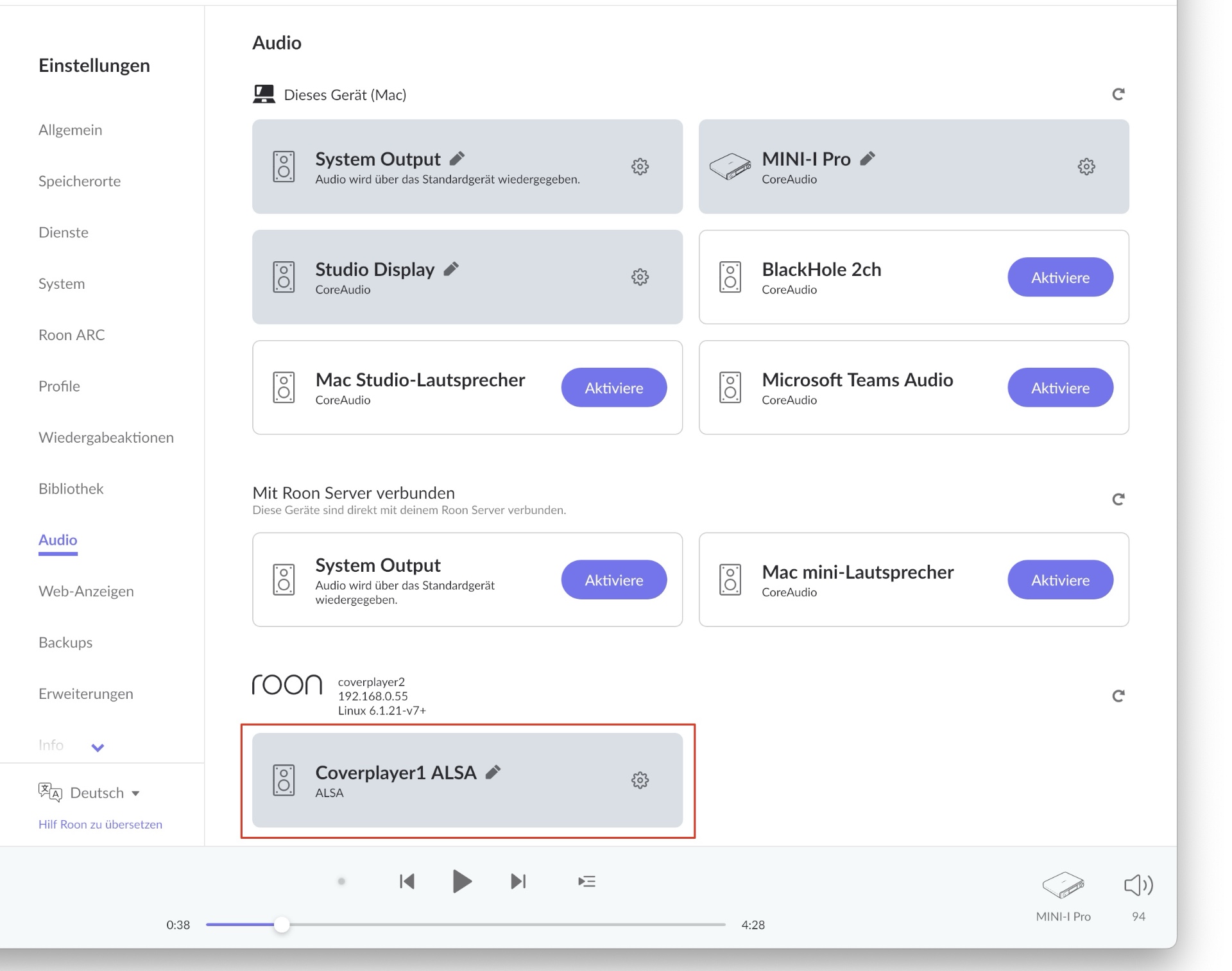
However, the capabilities of the BT Audio Dongle are currently still limited. The performance of the Raspberry Zero 2W hardware used in Roonmatrix and Coverplayer is just barely enough.
The Roonmatrix currently sometimes struggles with dropouts during playback.
The situation is somewhat better with the Coverplayer. With this device, playback works without dropouts in most cases.
It may be possible to further optimize the devices’ software so that it functions more reliably in the future.
Now, regarding the Apple Music streaming service:
To use it, you also need API access.
While this is available for free on Spotify, Apple requires a developer account. This currently costs 99 euros per year.
The following images show you how to set up the API account.
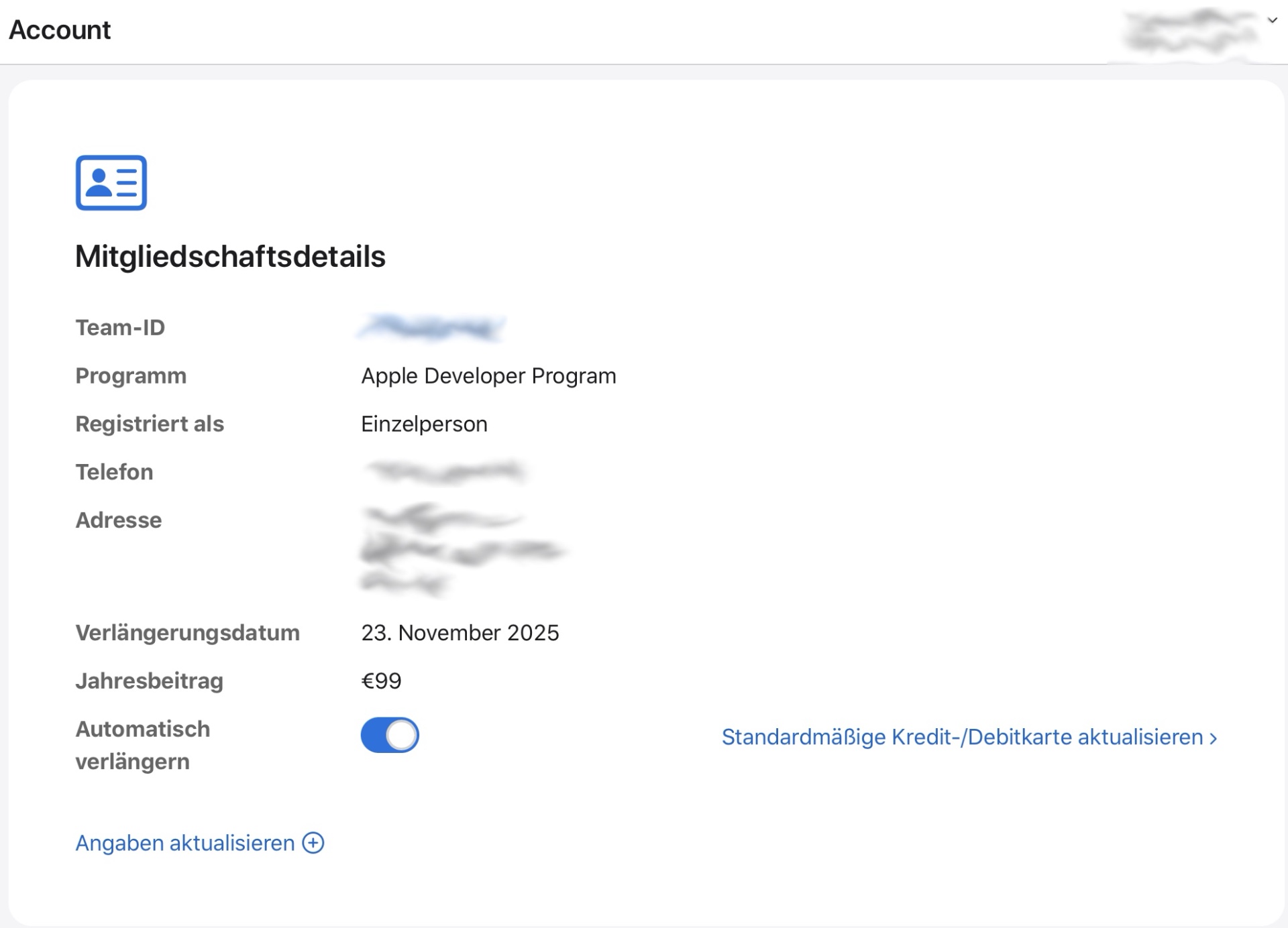
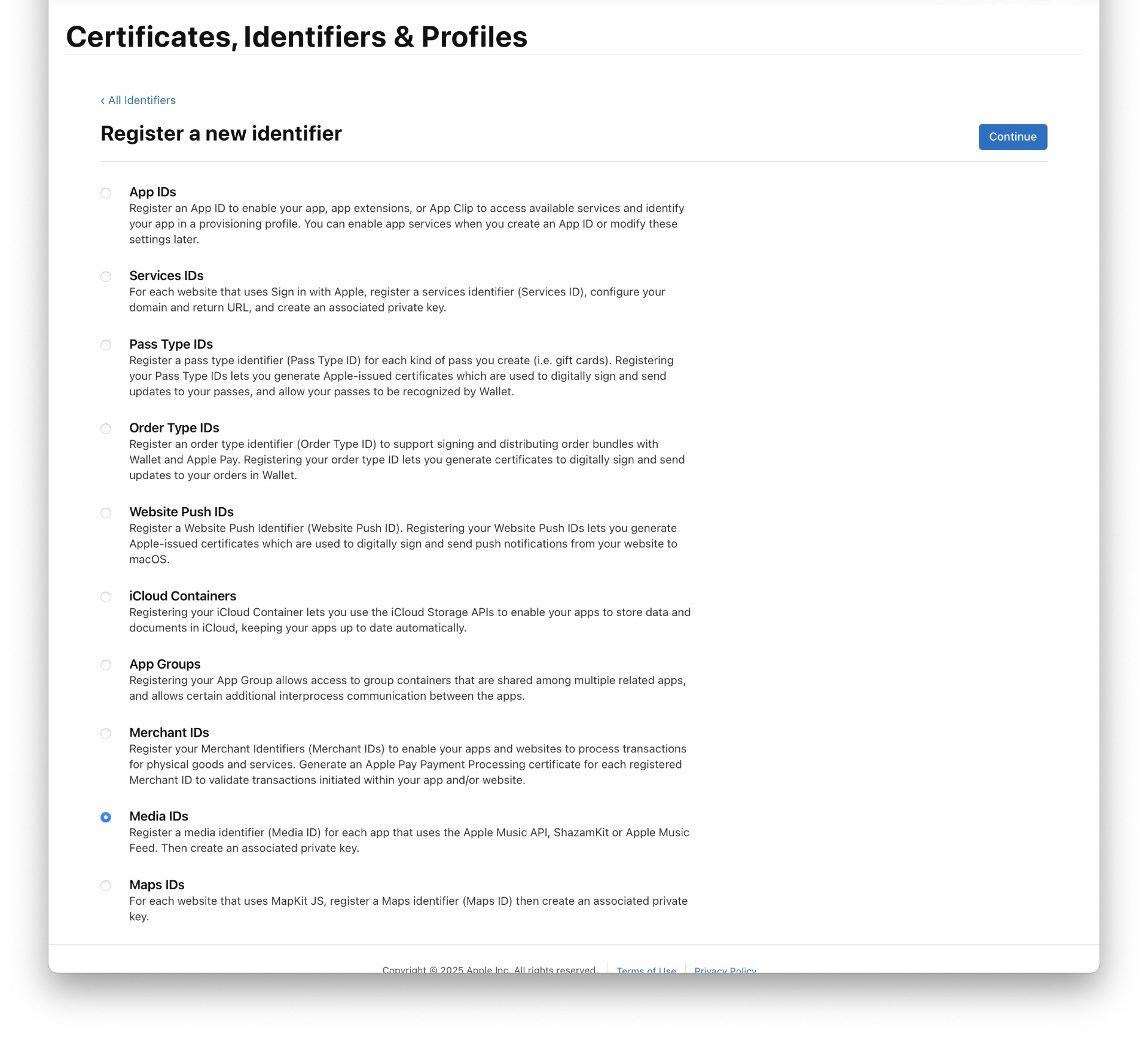
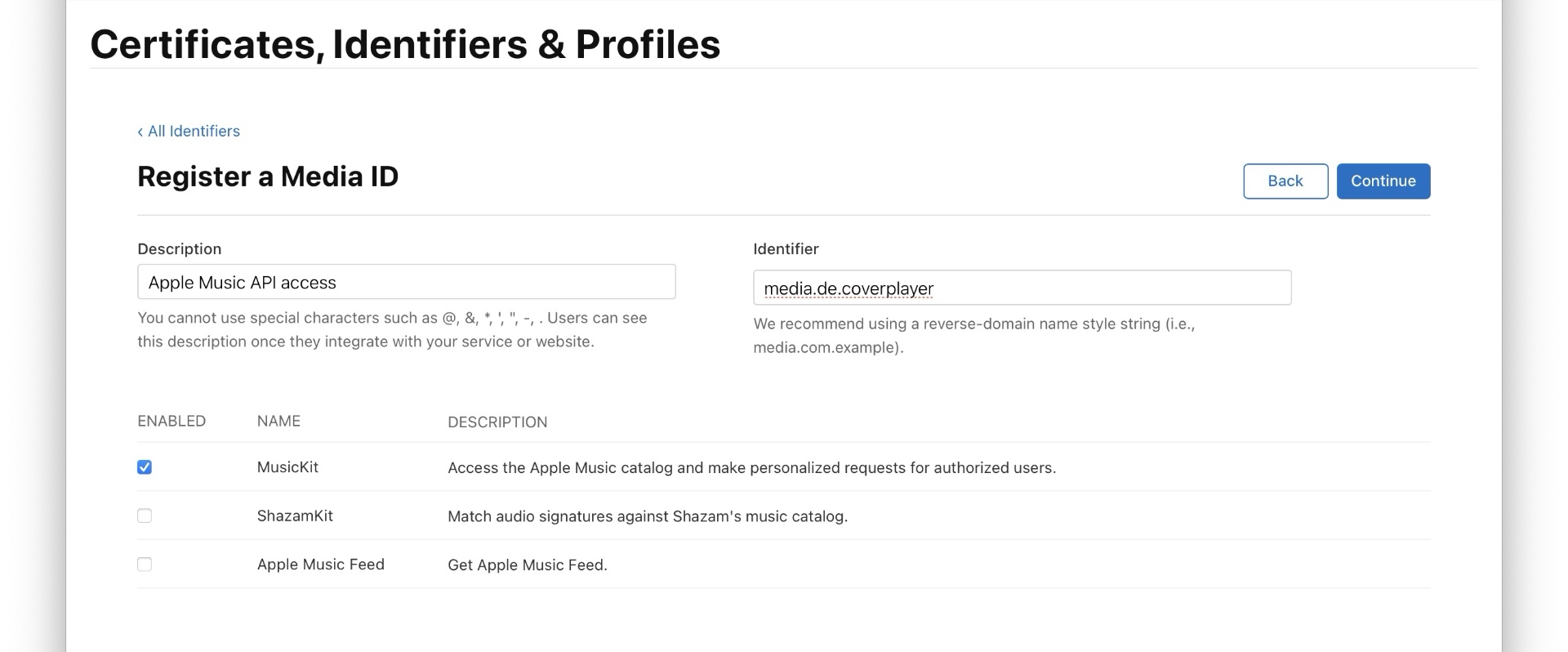
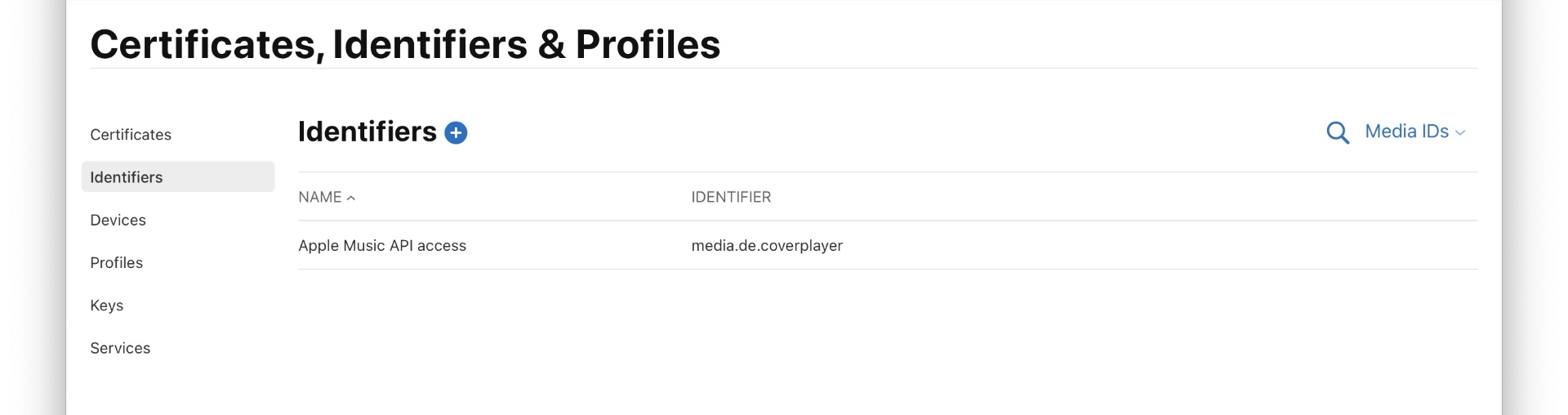
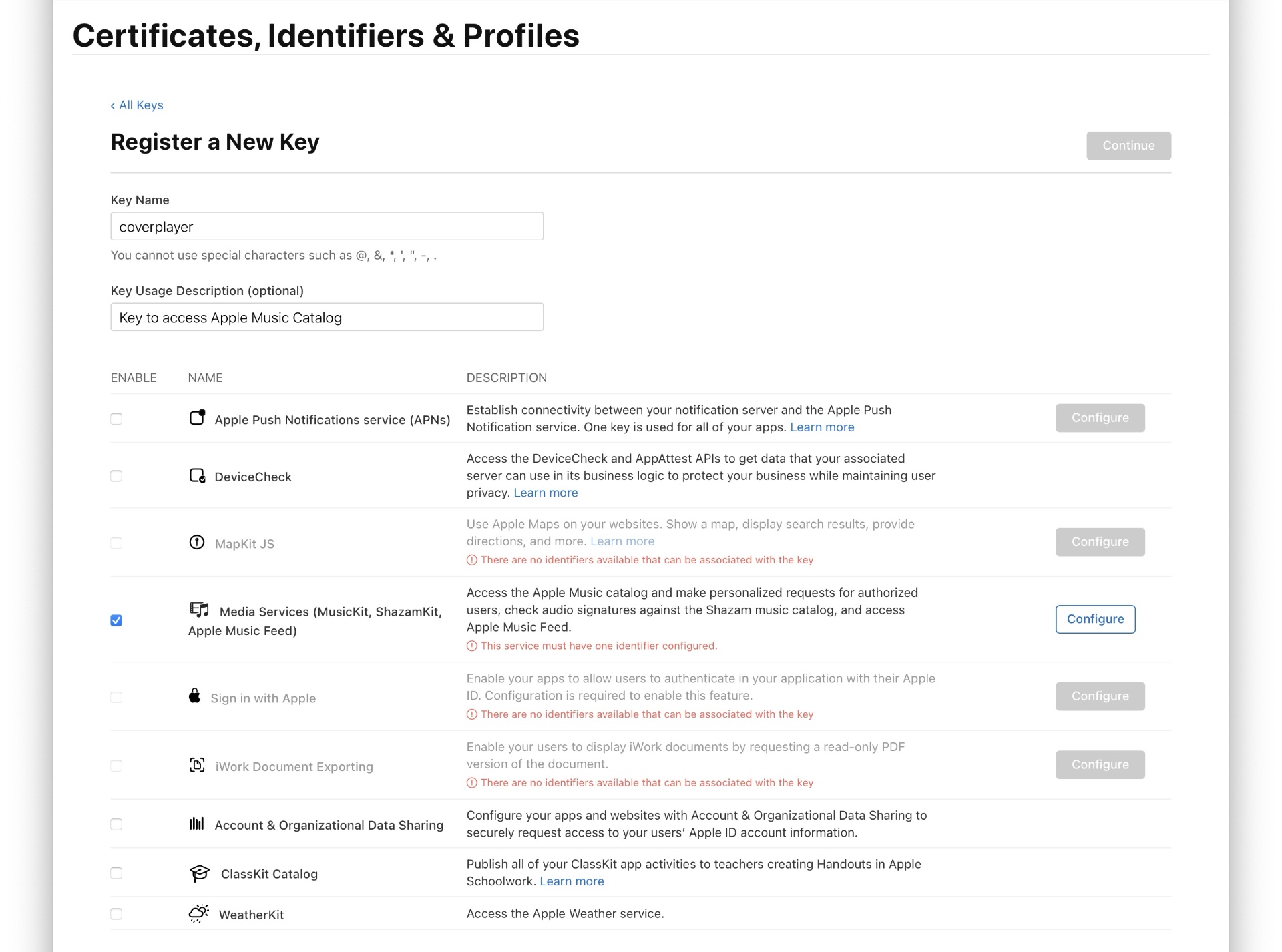
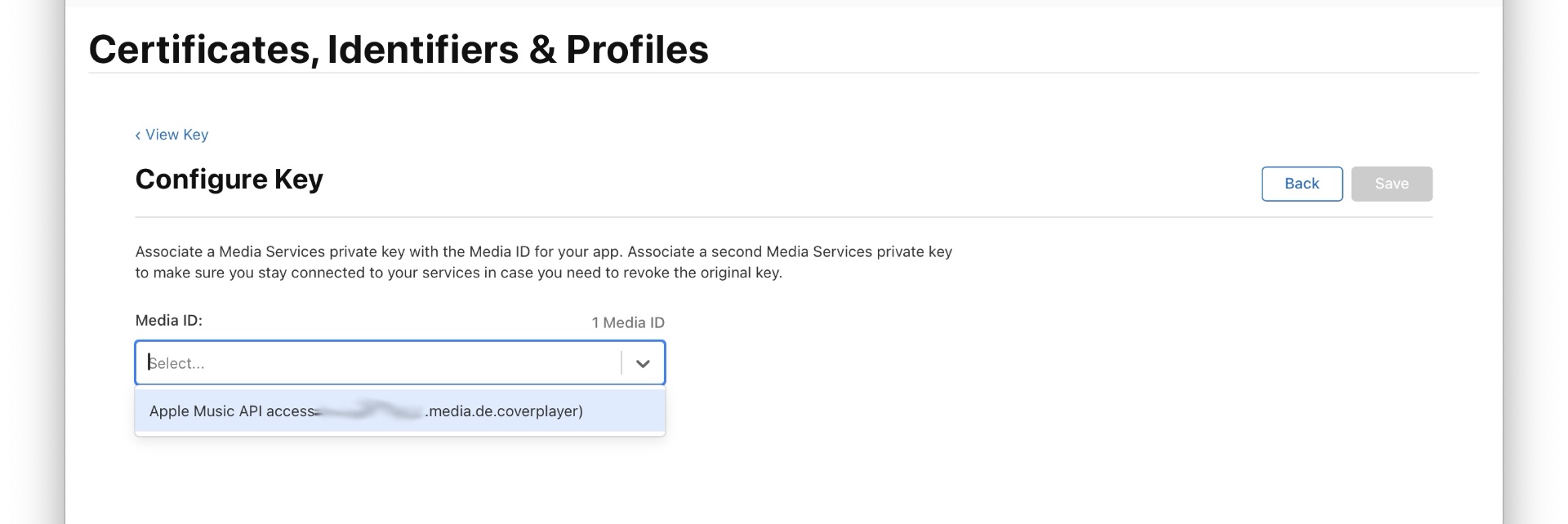
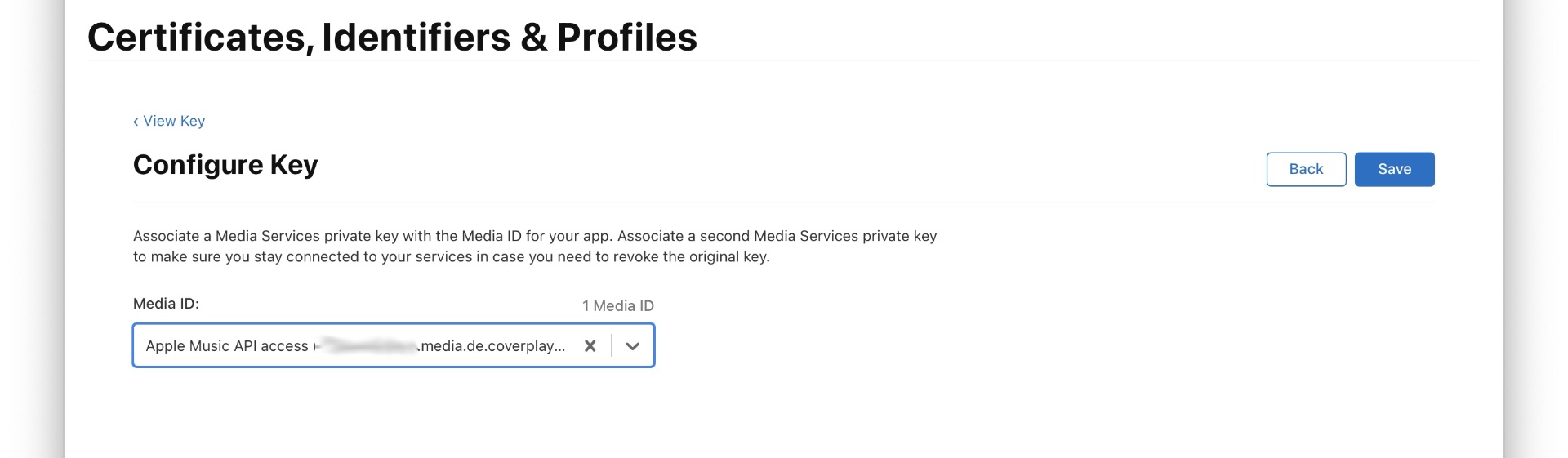
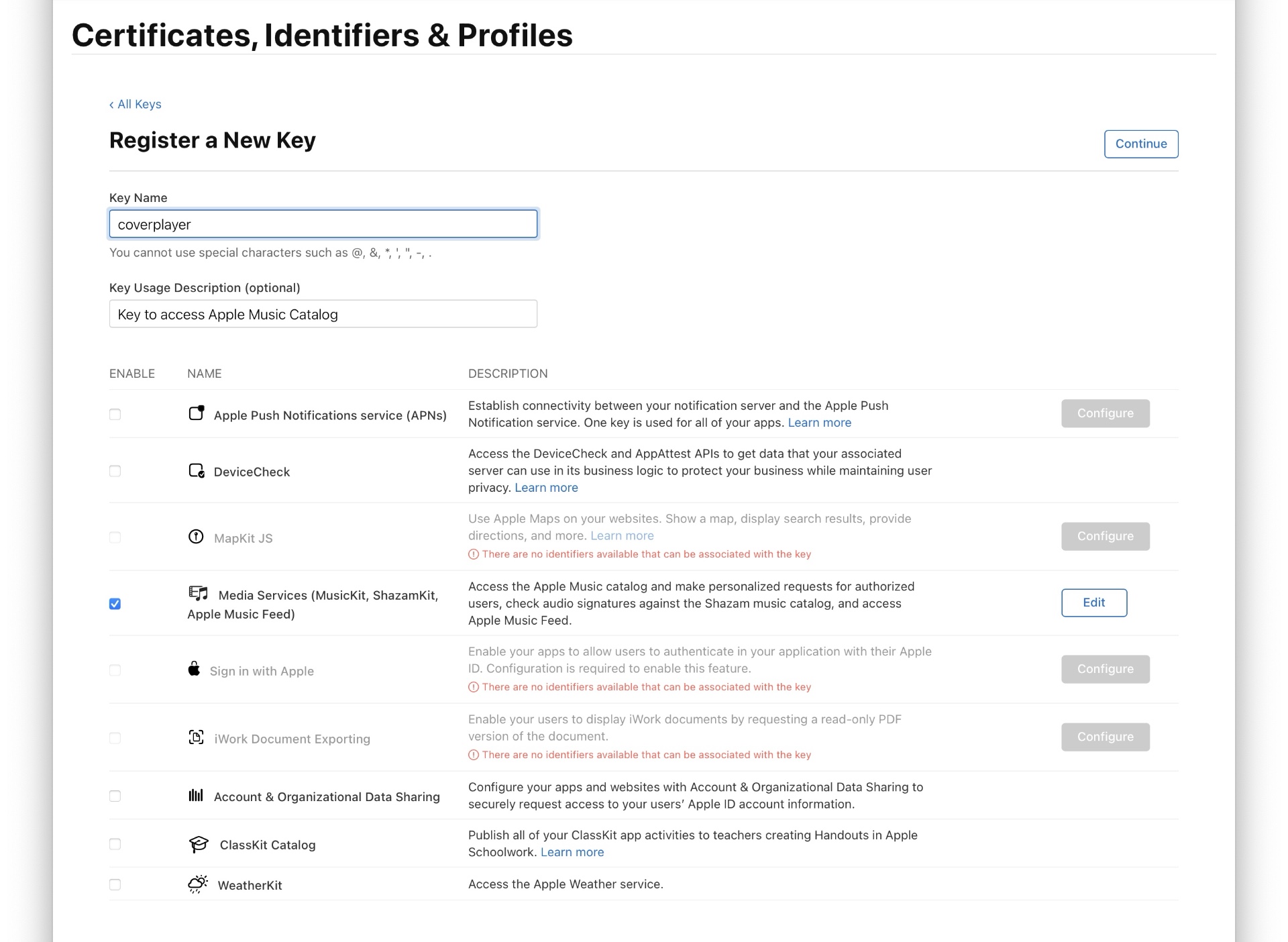
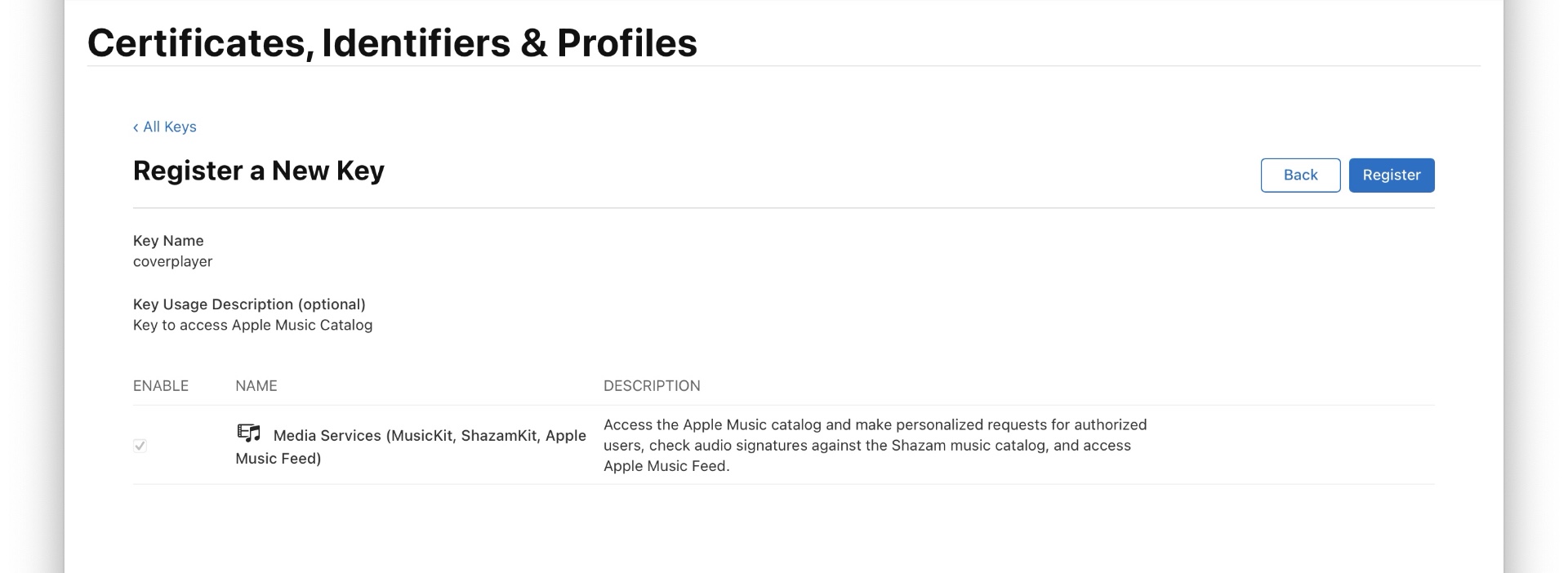
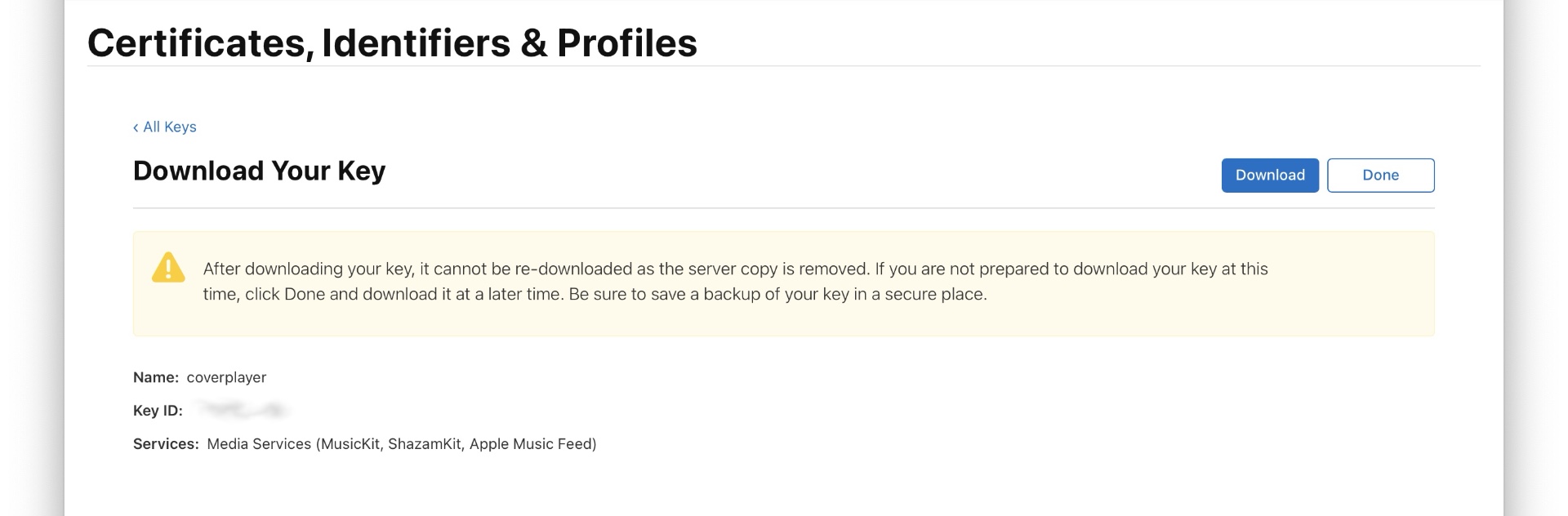
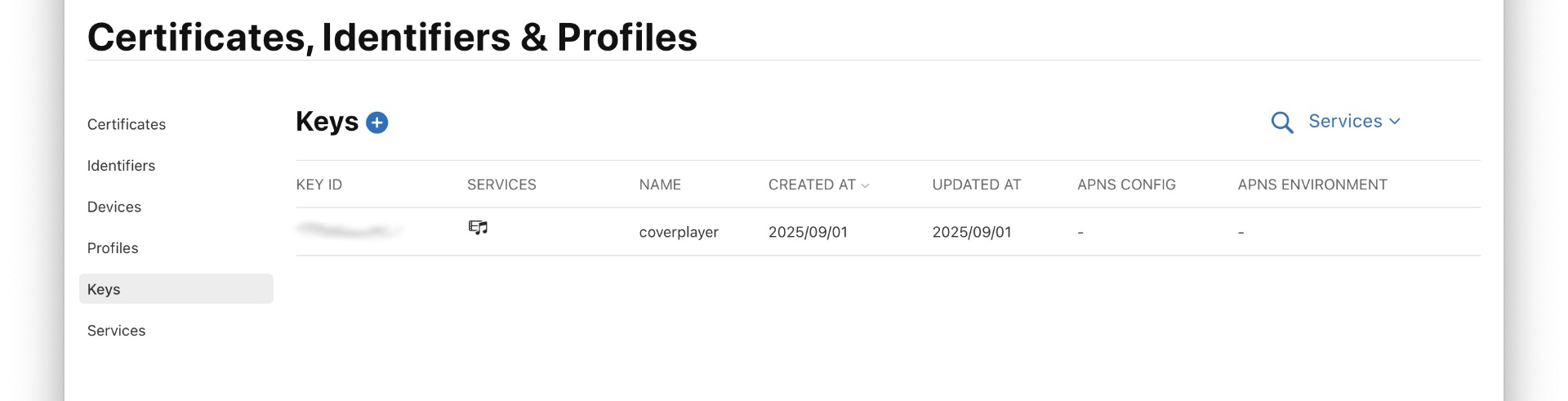
You must also enter the Apple Music Web API team ID, key ID, and secret key in the Roonmatrix app config, so that you can use the Coverplayer’s search function for Apple Music as well.
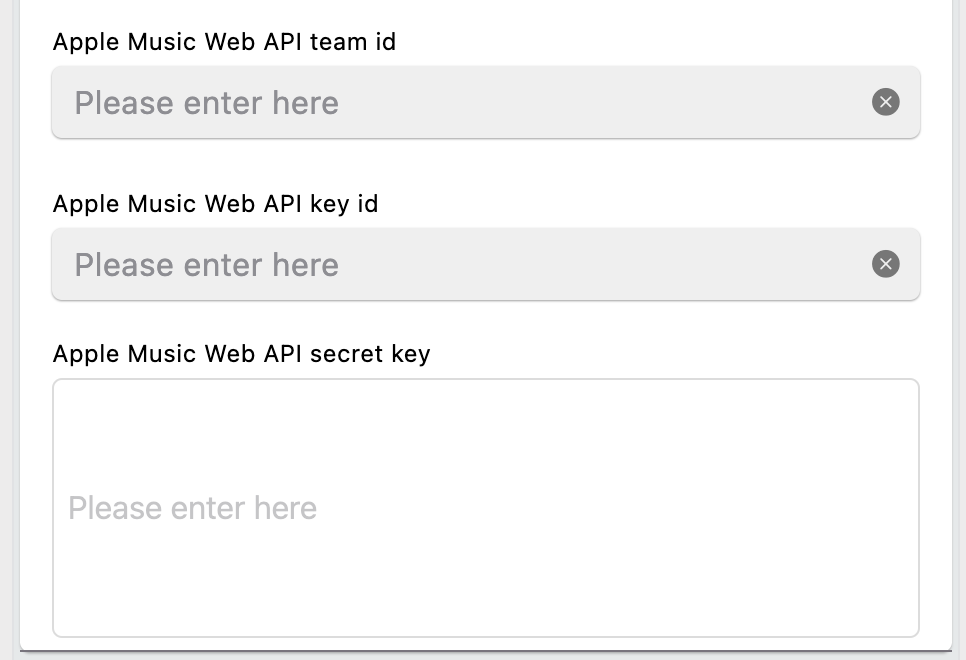
The Apple Music Web API is not required for Roonmatrix, since the device does not have a search function.
Apart from streaming services, there’s another way to access your Apple Music and Spotify libraries.
Namely, by using your own web server, which must run on the computer where Spotify and/or the Apple Music app is installed.
However, this must be a computer running macOS, since the web server controls an AppleScript via a PHP script.
With AppleScript, you can fully control the Apple Music and Spotify apps and retrieve music information.
At the moment there is unfortunately no similar option available for Windows.
If you've already set up Spotify Connect, you don't need the web server to control Spotify.
Spotify Connect also allows you to search your music library and control playback functions and output channels.
With Apple Music, things work a little bit differently: To search the streaming service’s music library, you need a Web API account.
However, this does not allow you to control what should be played or which (AirPlay 2) output channel to use.
The latter is possible with slight limitations via AppleScript through the Apple Music app, but not via the API.
In this case, “slight limitations” means the following:
Controlling playback functions can sometimes be problematic, as there are no dedicated control commands via AppleScript for this purpose,
only the option to navigate to the actual play button using keyboard commands. And that’s tricky, since it doesn’t always work 100% of the time.
Sometimes simply repeating the music selection in CoverPlayer is enough to make it work.
While searching the streaming service via Web API works, searching your own local music library (which is stored on your own computer) is only possible via AppleScript.
Controlling playback functions for your own content is also only possible via AppleScript, but in this case without any issues.
To control Spotify (not Spotify Connect) and Apple Music, you must have an Apple computer with a web server set up and certain permission settings configured.
This isn’t exactly straightforward for the average user without in-depth knowledge in these areas, but it is certainly possible.
How to setup your own Webserver to control Spotify and Apple Music App is explained here: RoonMatrix Part 14: Local web server for Apple Music and Spotify
I hope this article has helped clear up any confusion you may have had about setting up the devices.
If you have any further questions, please feel free to use the forum on my website or contact me directly.
I would also appreciate any feedback regarding errors, whether they concern the hardware, software, or website.
Suggestions for improvements, new features, or requested changes are also very welcome.
It would also be great to receive a message letting me know if the setup worked, what difficulties you may have encountered, or if any part of the guide needs further clarification.
In any case, I wish you every success in setting up and operating this devices, which I hope will be quite useful for you.